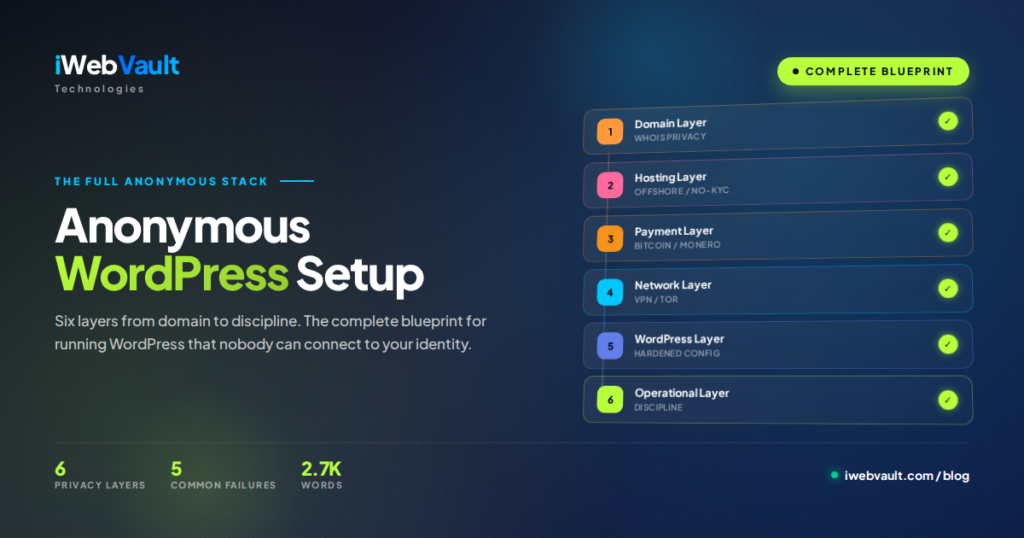
You’re running WordPress and you’ve decided you need a host that won’t fold the moment a takedown notice lands in their inbox. The good news: WordPress runs beautifully on DMCA-ignored hosting. The bad news: most guides assume you’re on WP Engine or SiteGround and skip every step that actually matters offshore.
Managed WordPress hosts comply aggressively with takedown requests because their entire business model depends on staying in the good graces of US payment processors, US data centres, and US legal counsel. Move to an offshore provider and you get the legal moat — but you also lose the magic-button installs, the auto-updates, and the support team that’s used to dealing with WP-specific issues.
This guide bridges the gap. We’ll cover what to look for in a DMCA-ignored WordPress host, how to install WordPress cleanly on offshore infrastructure, the security hardening that matters more when your hosting is anonymous, how to migrate an existing site without downtime, and the five WordPress-specific mistakes that get people suspended even by hosts with relaxed policies.
- What makes a WordPress host actually suitable for offshore use
- Step-by-step WordPress install on iWebVault (or any cPanel host)
- The 7 plugins every offshore WordPress site needs
- Hardening steps that matter more when you can’t fall back on managed support
- How to migrate from WP Engine, SiteGround, or any standard host
If you haven’t decided on a host yet, start with our comparison of the best DMCA-ignored providers first. This guide assumes you’ve picked one (we’ll use iWebVault for the screenshots, but the steps apply to any cPanel-based offshore host).
Why WordPress and DMCA-Ignored Hosting Is a Specific Combination
WordPress isn’t just a CMS — it’s the underlying platform for roughly 43% of all websites. That dominance means most takedown notices in 2026 land on WordPress sites, which in turn means most managed WordPress hosts have built entire compliance pipelines around fast removal.
Why managed WordPress hosts are a poor fit for sensitive content
Hosts like WP Engine, Kinsta, and Pressable optimise for one customer profile: agencies serving conservative businesses. Their AUPs explicitly prohibit anything that could attract legal attention — not just illegal content, but anything controversial. Adult content is banned. Streaming aggregators are banned. Even some journalism and political content gets flagged by their automated systems. If your project doesn’t fit that profile, you’ll get suspended in week two and lose your money.
WordPress’s flexibility is the strength and the risk
The same plugin ecosystem that makes WordPress powerful — scrapers, embed tools, file hosts, comment forums — is the same ecosystem that triggers takedowns. On standard hosting, installing a plugin that aggregates content from other sites can get your account suspended even when no actual takedown notice has arrived. On a DMCA-ignored host with a reasonable AUP, the same plugin is fine.
The technical requirements are identical
Despite the legal differences, WordPress runs the same on offshore hosting as it does anywhere else. PHP, MySQL or MariaDB, Apache or LiteSpeed, a few standard PHP extensions — that’s it. Any reputable offshore host meets these requirements out of the box.
What to Look For in DMCA-Ignored WordPress Hosting
Beyond the obvious (offshore jurisdiction, no-KYC signup, accepts crypto), WordPress sites have specific technical requirements. Check these before you commit:
1. Current PHP version (8.1 or higher)
WordPress 6.x performs measurably better on PHP 8.1+ and the upcoming WordPress versions will require it. Avoid hosts still stuck on PHP 7.4 — that’s a sign of an aging infrastructure you’ll regret.
2. LiteSpeed Web Server (ideal) or properly tuned Apache/Nginx
LiteSpeed Cache for WordPress is, in our experience, the single biggest performance improvement you can give a WP site. It’s a free plugin if your host runs LiteSpeed Enterprise. iWebVault runs LiteSpeed on all our cPanel plans for exactly this reason.
3. MySQL or MariaDB 10.4+ with sensible defaults
Older MySQL versions slow down WordPress queries noticeably. Check your prospective host’s stack — and check whether they let you adjust `innodb_buffer_pool_size` on VPS plans. On shared, the defaults should be reasonable; on VPS, you’ll want control.
4. SSH and WP-CLI access
wp-cli is the WordPress command-line tool. It makes updates, backups, search-replace operations, and troubleshooting dramatically faster than clicking through the admin panel. Any host that doesn’t offer SSH access is, in 2026, a bad fit for WordPress.
5. Daily automatic backups stored off-server
Backups stored on the same server are not backups — they’re convenience copies that disappear with the server. Look for JetBackup, R1Soft, or any backup system that stores copies on a separate machine, ideally in a different data centre. iWebVault includes off-server JetBackup snapshots on every plan.
6. Free SSL (Let’s Encrypt or equivalent)
Non-negotiable in 2026 — Google flags HTTP-only sites as insecure. Let’s Encrypt is free, auto-renews, and any modern host integrates it through cPanel or DirectAdmin with one click.
7. Reasonable resource limits and burst tolerance
WordPress sites get traffic spikes — a post goes viral, a backup runs, a plugin updates. Cheap hosts with hard CPU/memory caps will throttle or suspend you the moment that happens. Check the AUP for “resource use” language. iWebVault uses CloudLinux to provide soft limits with burst tolerance instead of hard suspensions.
Step-by-Step: Installing WordPress on iWebVault
Here’s the actual procedure, start to finish. The steps generalise to any cPanel-based offshore host:
Step 1 — Order your plan and point your domain
Choose cPanel Hosting for a managed experience or DirectAdmin Hosting if you prefer that panel. After payment (Bitcoin or otherwise — see our crypto payment guide if relevant), you’ll receive cPanel credentials by email.
Update your domain’s nameservers to point to iWebVault’s nameservers (provided in your welcome email). DNS propagation takes anywhere from 5 minutes to 48 hours, but typically resolves within 1-2 hours.
Step 2 — Install WordPress via Softaculous
Inside cPanel, find the Softaculous Apps Installer section. Click WordPress → Install. Key settings:
- Choose Protocol: https:// (always — never plain http)
- Choose Domain: your domain
- In Directory: leave blank to install at the root
- Site Name and Description: can be edited later
- Admin Username: NOT “admin” — pick something random
- Admin Password: use the password generator, save it in your password manager
- Admin Email: use your privacy-respecting email
- Database settings: leave the auto-generated values; they’re fine
Click Install. Softaculous deploys WordPress in under a minute. You’ll get a URL for /wp-admin/ — log in.
Step 3 — Install the essential plugins
Before doing anything else, install these seven plugins. They’re the offshore-WordPress essentials:
- LiteSpeed Cache — page caching, image optimisation, critical CSS, lazy loading. Massive performance gain.
- Wordfence Security — firewall, malware scanning, login protection. Free tier is sufficient for most sites.
- UpdraftPlus — additional backup layer to remote storage (Backblaze B2, Wasabi, or any S3-compatible bucket — pay in crypto if you want to maintain anonymity).
- Two Factor Authentication — 2FA for the admin account. Critical for any anonymous site since password recovery is harder.
- WP Hide & Security Enhancer — hides
/wp-admin/,/wp-login.php, and other default paths from automated bots. - Yoast SEO or Rank Math — meta tags, sitemap, schema. Pick one.
- WP-Optimize — database cleanup, removes spam comments and post revisions that bloat your database over time.
Step 4 — Configure LiteSpeed Cache
LiteSpeed Cache → Cache → Enable Cache: ON. Most other defaults are sensible. The biggest wins:
- Page Optimization → CSS Settings → CSS Minify: ON
- Page Optimization → JS Settings → JS Minify: ON, JS Defer: ON
- Page Optimization → Image Optimization Settings → Enable on registered hosts → run the optimiser; converts images to WebP automatically
- CDN → CDN Settings → enable Cloudflare or BunnyCDN if you have one configured
Step 5 — Set up off-server backups
UpdraftPlus → Settings → choose a remote destination (Backblaze B2 is the cheapest at roughly $5/TB/month). Schedule daily database backups and weekly file backups. Test the restore process at least once before you need it.
Step 6 — Enable HTTPS and force SSL
cPanel → SSL/TLS Status → run AutoSSL on your domain. Then in WordPress: Settings → General → set both URLs to https://. Install the “Really Simple SSL” plugin briefly to force-redirect any remaining HTTP requests, then deactivate it once you’ve verified everything works.
Hardening WordPress for Offshore Hosting
When your hosting is anonymous, you have less support fallback if something goes wrong — you can’t call a manager and ask them to restore access because they don’t know who you are. That makes prevention more important. These are the hardening steps that matter most:
1. Disable XML-RPC
XML-RPC is a legacy WordPress API that’s almost never legitimately needed in 2026 but is the number-one target for brute-force and DDoS attacks. Disable it in .htaccess:
# Block XML-RPC requests
<Files xmlrpc.php>
  Require all denied
</Files>
2. Hide your WordPress version
Add to your theme’s functions.php (or use a code-snippets plugin):
remove_action('wp_head', 'wp_generator');
add_filter('the_generator', '__return_empty_string');
3. Limit login attempts
Wordfence handles this automatically once installed. If you prefer a lightweight alternative, “Limit Login Attempts Reloaded” is a popular standalone plugin. Both will lock out IP addresses that hit too many failed login attempts.
4. Disable file editing in the admin
WordPress allows admins to edit theme and plugin files directly through the admin panel, which is a security catastrophe if anyone gets in. In wp-config.php, add:
define('DISALLOW_FILE_EDIT', true);5. Use strong, unique credentials everywhere
Admin password: at least 20 characters, generated by a password manager. Database password: the same. SFTP password: the same. Email password: the same. Don’t reuse any of them anywhere else. The official WordPress hardening guide covers more.
6. Keep WordPress, themes, and plugins updated
Outdated plugins are the number-one route for site compromise. Enable auto-updates on minor versions in WordPress 6.x and check major updates monthly. Wordfence’s “vulnerability scanner” will flag specific plugins that have known issues.
Migrating an Existing WordPress Site to Offshore Hosting
If you’re moving an existing site, the cleanest approach is a plugin-assisted migration:
Option A — All-in-One WP Migration (easiest)
- Install “All-in-One WP Migration” on your current site
- Export → File. Download the .wpress file (note: large sites need the paid extension)
- Install WordPress fresh on iWebVault (Step 2 above)
- Install All-in-One WP Migration on the new site
- Import → upload the .wpress file
- Test thoroughly on the temporary URL before swapping DNS
Option B — Manual migration (more reliable for large sites)
- SSH into old site, run
tar -czf site-backup.tar.gz wp-content/ - Export the database:
mysqldump -u dbuser -p dbname > db.sql - Transfer both files to iWebVault via SFTP or
rsync - Create a fresh database in cPanel, import the .sql file
- Extract wp-content/ to your new WordPress installation
- Update
wp-config.phpwith new database credentials - Run
wp search-replace 'oldsite.com' 'newsite.com'via WP-CLI to fix URLs
The DNS swap
Before switching DNS, lower your domain’s TTL to 300 seconds at the registrar (do this 24 hours before the swap). When you’re ready, update the A record / nameservers to point to iWebVault. Most users will see the new site within an hour; full propagation completes in 24 hours. Keep the old hosting active for at least 7 days as a fallback.
5 WordPress Mistakes That Get You Suspended Even on Offshore Hosting
Even DMCA-ignored hosts draw lines. These are the WordPress-specific patterns that get accounts suspended:
1. Hosting actually illegal content
CSAM, direct threats of violence, and explicit fraud are universally banned. No offshore host will protect you on these; most will report you. “DMCA-ignored” means the US copyright system has no automatic leverage — it doesn’t mean unlimited.
2. Running aggressive scraping plugins against sites that ban it
Plugins that scrape content from other sites in violation of their robots.txt or AUP generate complaints to the host. Even DMCA-ignored hosts respond to legitimate abuse complaints. Scrape thoughtfully.
3. Cron jobs that hammer shared resources
A backup running every 15 minutes, a sync job pulling 50MB every hour, an analytics scraper hitting a hundred sites per minute — these patterns trigger automated suspension on shared plans regardless of jurisdiction. Move heavy workloads to VPS or schedule them at off-peak hours.
4. Forgetting to use WHOIS privacy on your domain
Anonymous hosting with a domain that publicly shows your real name in WHOIS is no anonymity at all. Use our domain service with free WHOIS privacy, or any registrar that offers it.
5. Mixing identifying information across accounts
Using your real Gmail for the WordPress admin email, then logging in from your phone, then signing up for a Stripe-connected payment plugin with your real business details — congratulations, you’ve reassembled your identity. Keep your offshore stack separate end-to-end.
Frequently Asked Questions
Not significantly with a properly configured European offshore host. iWebVault runs LiteSpeed servers in Netherlands and Bulgaria with sub-50ms latency to most of Europe and North Africa. Paired with LiteSpeed Cache and Cloudflare CDN, the experience is indistinguishable from a US-based managed host for most visitors.
Yes — WooCommerce runs identically on offshore hosting. The catch is payment processing: Stripe and PayPal will still apply their own real-name and identity requirements regardless of where your host is located. For full anonymity, integrate cryptocurrency payment processors (BTCPay Server is self-hosted and fully anonymous) instead of Stripe/PayPal.
Yes, with one caveat. Enable auto-updates for minor versions and plugins; review major version updates manually after taking a backup. This is the same recommendation as for any WordPress site — being on offshore hosting doesn’t change update behaviour.
Reputable hosts contact you first and explain why. If you have off-server backups (UpdraftPlus to a remote bucket, as recommended above), you can be back online on a different host within hours. This is why off-server backup is non-negotiable — it makes any host suspension a recoverable problem rather than a catastrophe.
Most WordPress sites under 10,000 monthly visitors run fine on shared hosting with LiteSpeed Cache. Beyond that, or if you’re running multiple sites, WooCommerce with significant inventory, or memory-hungry plugins, VPS is worth the upgrade. iWebVault’s entry VPS at $25/month handles most use cases that outgrow shared.
Yes, exactly the reverse of the migration steps above. WordPress sites are portable by design — export, transfer, import, update DNS. Some site owners use offshore hosting only during sensitive launch periods, then move back to standard hosting once the legal heat dies down. Both directions take a few hours.
Marginally and only if your audience is geographically concentrated. Google considers server location as one of many signals for local SEO, but with a CDN configured properly the impact is negligible. International or topic-focused sites see no SEO penalty from offshore hosting.
Yes, but understand the trade-off. Cloudflare is a US company subject to US law and will respond to legal pressure independently of your host. Use Cloudflare for performance and DDoS mitigation, but don’t rely on it as part of your privacy stack. For full DMCA protection, BunnyCDN (Slovenia-based) is a better CDN partner.
Ready to host WordPress offshore?
Every iWebVault plan includes LiteSpeed Cache, JetBackup off-server snapshots, free SSL, and one-click WordPress install via Softaculous. Sign up in 5 minutes, pay in Bitcoin or any major currency, and your WordPress site is live within 30 minutes — with the legal moat that managed WordPress hosts can’t offer.